By clicking “Allow All Cookies”, you agree to the storing of cookies on your device to enhance site navigation, analyze site usage, and assist in our marketing efforts. View our Privacy Policy for more information.

How to Create the Ideal MP4 Video for Your Avatar Template

Learn how to create the ideal 720p MP4 template video for CANVID’s Synthetic Webcam. Follow best practices for lighting, framing, length, and movement to generate a more realistic AI avatar.

Henrik Levring
Henrik Levring
March 2, 2026

When using CANVID's AI Webcam, you can create your own Avatar template. The ideal input is a 20–30 second, 720p (16:9) MP4 video of yourself looking directly into the camera.
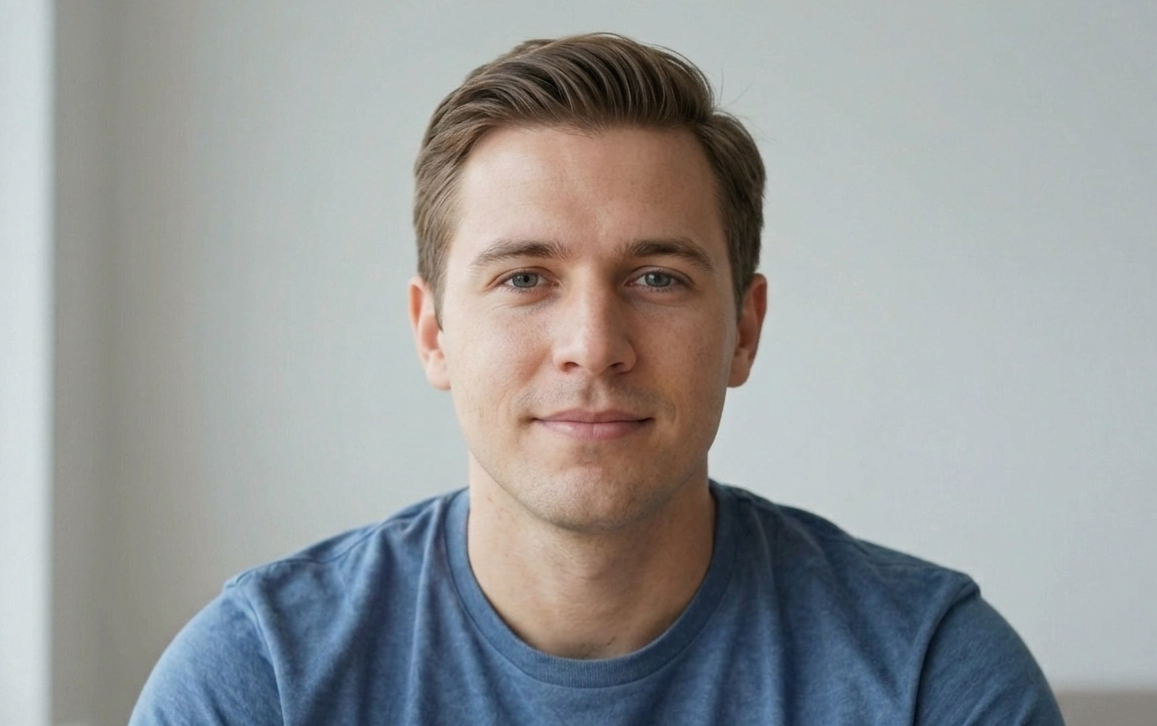
The best results come from a natural, relaxed recording:

  • Small head and facial movements are encouraged
  • Natural eye blinks are important
  • Light mouth and facial muscle movement is fine
  • Avoid speaking if possible

Here is an example of an ideal short 720p webcam recording made using XSplit Broadcaster, but you can also use tools like OBS, or any other camera app.

Recording Tips

  • Record in a well-lit room
  • Keep the background simple and uncluttered
  • Maintain a neutral expression with light, natural movement
  • Avoid exaggerated gestures or large body movement

Using Existing Videos

If you already have an MP4 video where you are speaking, you can still use it.

  • If the video is longer than 30 seconds or not in 720p 16:9, CANVID will automatically reformat it
  • CANVID’s AI Webcam generation is robust enough to handle templates where the subject is talking

Note: Sometimes, when the AI turns speaking parts into silent pauses, you may notice small mouth movements that look like mumbling. This is a known issue, and we’re currently working on making it better.

Still need help?