Capture System Audio
Learn how to capture system sound in CANVID. Enable system audio recording on Windows or Mac to include all computer sounds in your screen recordings.
In CANVID, you can record your screen with audio from various sources. This guide will show you how to allow the app to record the screen with computer audio on Windows or Mac.
Enabling System Audio Capture
Run the app
Select your preferred capture type (Window or Display)
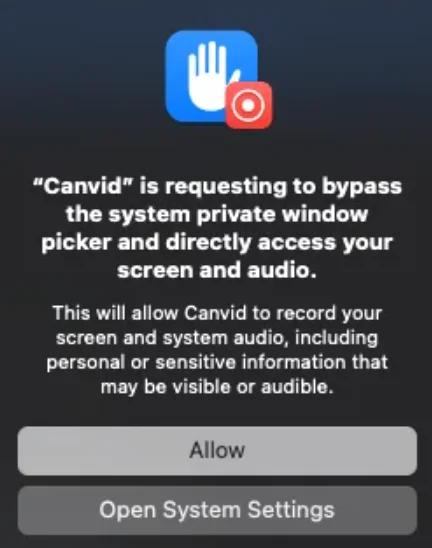
For Mac users: The first time you use the app, you may see a system permission prompt asking to allow the app to record your screen and audio. Click Allow to enable recording.
Enable System Audio capture
In the Prerecording window, click the System Audio button located at the lower-right corner.
You'll have two options:
- No System Audio: The app will not record system sound.
- Record System Audio: The app will record your computer's sound.
Before recording, play any audio or music on your computer. You should see an audio level meter move, which means CANVID is detecting your system audio correctly.